
Every IDM user knows that Internet Download Manager (IDM) can download YouTube
videos with just one click with the Video Download Panel feature.
But what if you want to download an entire YouTube playlist with IDM or
select specific videos from it?
IDM has a solution for that too!
Online YouTube Playlist Downloader websites are showing “API Error: Sign in to confirm you’re not a bot” error. So use alternative softwares like ByClick Downloader to Download YouTube Playlist.
How to Download Playlist from YouTube with IDM

You can download a YouTube playlist using IDM after following the simple steps
outlined below.
Plus, if you’re facing issues with IDM not showing the download panel for
YouTube videos, check out this guide to fix the IDM YouTube Download Panel
issue.
Now, let’s move on to the steps to
download YouTube playlists using IDM!
-
Go to YouTubePlaylist.cc and Create a Free Account
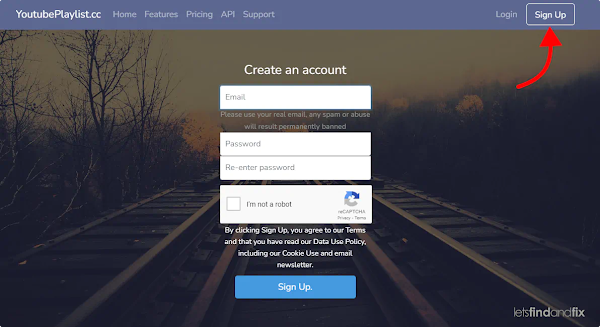
You can use temporary email services like
Temp Mail to create multiple accounts if needed. -
Copy the YouTube Playlist URL
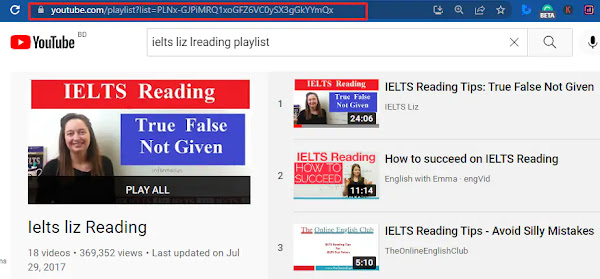
Navigate to the playlist you want to download on YouTube, copy the playlist
URL from your browser’s address bar, and paste it into the input field on
YouTubePlaylist.cc. -
Select 15 Videos from the Playlist
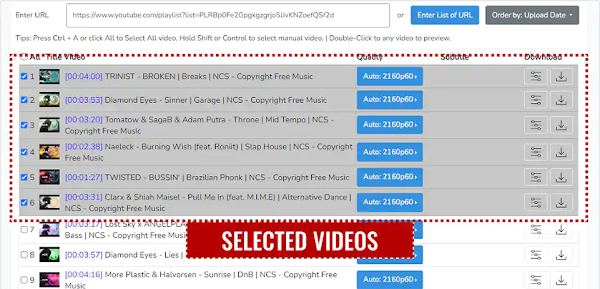
The free account on YouTubePlaylist.cc has a limit of 15 videos per day, so
select the 15 videos you want to download from the playlist. -
Choose the Video Quality
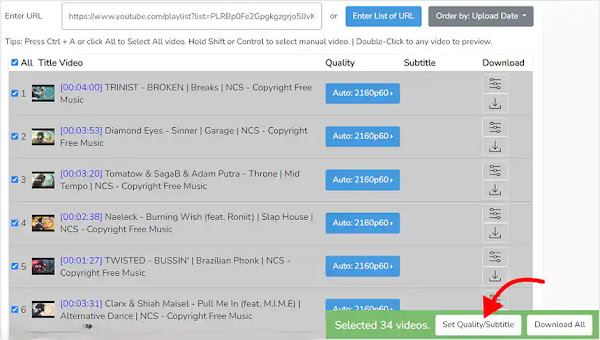
Once you’ve selected the videos, choose the video quality you want for the
downloads, then click on ‘Download All’. -
Export and Copy the Downloadable Links
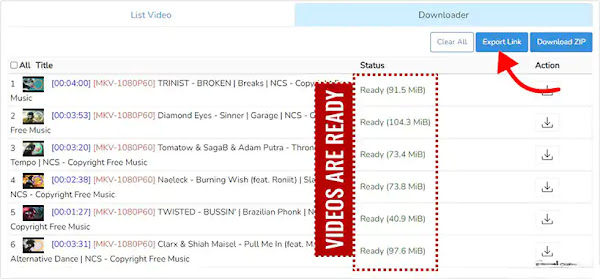
After the site processes your request, click on ‘Export Link’ and then on
‘Copy to Clipboard’ to get the download links for the videos. -
Open IDM and Add Batch Download from Clipboard
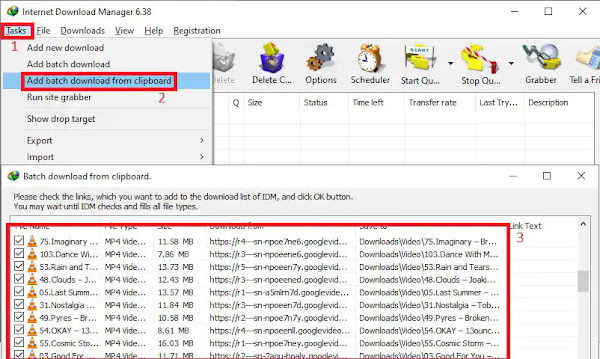
Now, open IDM on your computer. In the IDM interface, click on the ‘Tasks’
option in the top-left corner and select ‘Add Batch Download from
Clipboard’. IDM will automatically detect all the copied download links.In the batch download window, click on the ‘Check All’ button to select all
the videos you want to download from the playlist. -
Name the Queue and Start the Download
Name the download queue whatever you like, then click on ‘Start’ to begin
downloading the selected videos.
That’s all! 🎉 Now IDM will download the YouTube playlist videos in batch
mode, making the whole process simple and efficient.
Important Tips to Download Full YouTube Playlist using IDM
-
15 Videos per Day Limit: YouTubePlaylist.cc allows you to download only 15
videos per day with a free account. To bypass this, you can create a new
account using a temporary email service like Temp Mail and continue
downloading the rest of the playlist. -
IDM’s Batch Download Feature: IDM’s batch download feature makes it easy to
download multiple files at once, saving you time and effort.
FAQs
What is the IDM Video Download Panel?
The video download panel in Internet Download Manager (IDM) is a feature that
allows users to easily download streaming videos from various websites. When a
video is played in a browser, IDM detects it and displays a download panel,
typically appearing as a button or notification on the browser’s menu bar.
Users can click this panel to initiate the download process.
Key Functions of the Video Download Panel
-
Automatic Detection: The panel appears automatically when a video is played
in the browser, offering options to download the video in various formats
and qualities available on the site. -
Customization Options: Users can customize the behavior of the download
panel through IDM’s settings. This includes enabling or disabling the panel
for specific types of content, adjusting file type preferences, and managing
exceptions for certain websites. -
Handling Protected Content: For videos that are protected by copyright or
use special protocols, IDM may not show the download panel. In such cases,
users can adjust settings to attempt to download the video using unprotected
protocols, although this may not always be successful due to legal
restrictions. -
Multiple Downloads: Users can download multiple videos simultaneously, and
the download process continues in the background even if the user pauses or
stops watching the video.
Overall, the video download panel in IDM enhances the user experience by
simplifying the process of downloading videos from the web, making it a
popular tool among users who frequently consume online video content.