
Are you encountering the frustrating “Cannot transfer download to IDM” error
message while trying to use Internet Download Manager (IDM)?
This issue often stems from IDM not being readily available in the background
to receive downloads due to various factors, such as disabling IDM from the
taskbar Startup program list or interference from boot time booster programs
like Acer Device Care.
Fear not, as we’ll delve into solutions to ensure IDM’s availability in the
background, facilitating seamless downloading experiences.
How to Fix Cannot transfer the download to IDM

Enabling IDM in Taskbar Startup Programs
- Right-click on the taskbar and select “Task Manager.”
- Navigate to the “Startup” tab.
- Locate IDM in the list of startup programs.
-
If IDM is disabled, right-click on it and select “Enable” to ensure it
launches during system boot-up.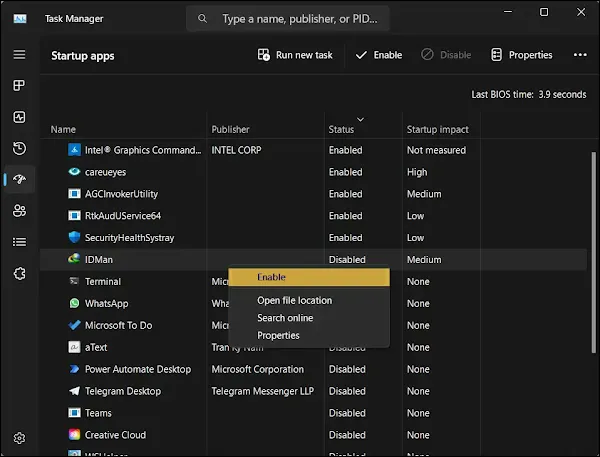
You may like to read these posts:
Configure Internet Download Manager Settings
- Launch IDM and go to the “Options” menu.
- Navigate to the “General” tab.
- Check the box next to “Launch Internet Download Manager on Startup” and “Use advanced browser integration”.
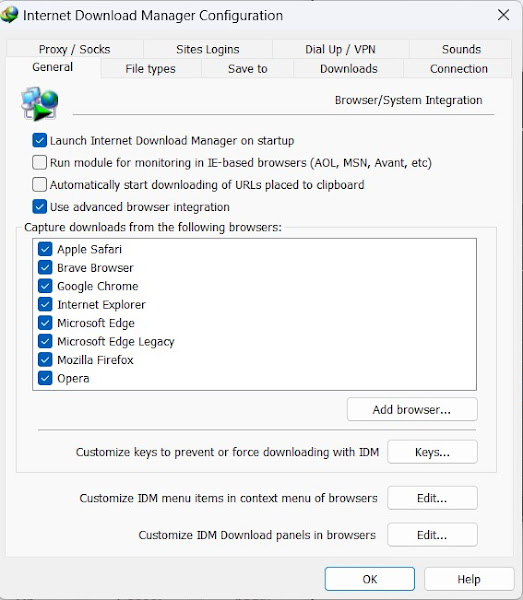
- Click “OK” to save your changes.
- Restart IDM to apply the updated settings.
Follow the step-by-step guide outlined above to configure IDM with the correct
settings and enjoy hassle-free downloads. With IDM set up optimally, you can
efficiently manage your downloads and enhance your productivity online.
How to Fix:
- Error: Cannot launch IDM, either IDM application is not installed, or some of its files are corrupted
- IDM Integration Module This Extension may have been Corrupted
- This version of IDM does not support this type of downloading
- Permission Denied IDM Firewall Error
- Cannot transfer the download to IDM
- IDM HTTP/1.1 403 Forbidden
- This extension may soon no longer be supported IDM