
Are you tired of slow download speeds and complicated processes when
downloading files online? Microsoft Edge has emerged as the browser of choice
for Windows users, offering a seamless and secure browsing experience. But did
you know that you can further enhance your downloading capabilities on Edge by
integrating the IDM (Internet Download Manager) extension?
In this guide, we’ll show you how to effortlessly integrate the IDM extension
with Microsoft Edge, optimizing your downloading experience for speed and
convenience. Whether you’re looking to accelerate download speeds, schedule
downloads, or manage them with ease, the IDM extension for Edge has you
covered.
Let’s dive into the step-by-step process of adding the IDM extension to
Microsoft Edge, empowering you to take control of your downloads like never
before. Say goodbye to sluggish downloads and hello to lightning-fast speeds –
let’s get started!
How to Add IDM Extension in Edge
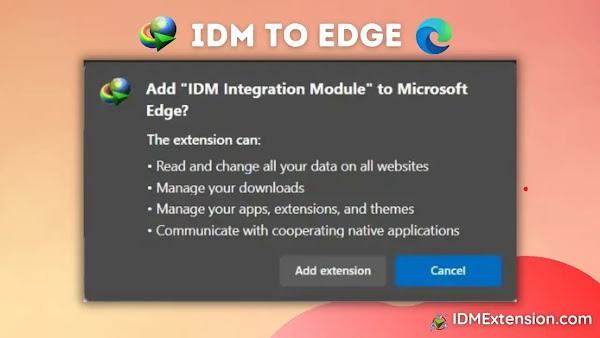
Here are two simple methods to integrate IDM Integration Module in Microsoft
Edge browser, one is using IDM CC for Edge, and the other using IDM Extension
Microsoft Edge Add-Ons Link. Let’s have a look at both of them. You can go
with any of them both work perfectly.
Integrate IDM Extension in Edge via IDM CC
Download the latest Internet Download Manager IDM Integration Module 6.42.3 IDMGCExt.crx [IDM CC] file to integrate IDM manually into Microsoft Edge browser.
To integrate IDM extension in Microsoft Edge Browser with IDM CRX, follow
these step-by-step instructions:
-
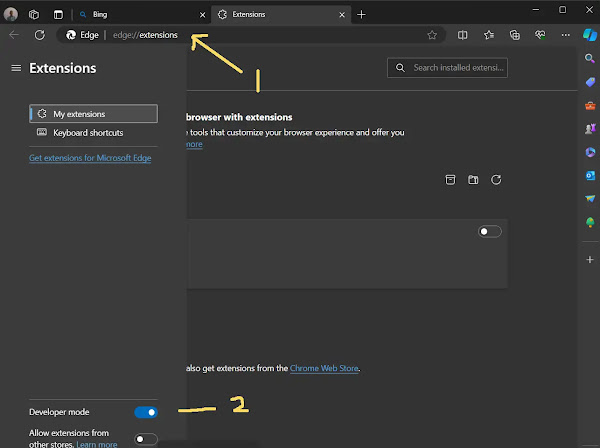
Open the Edge extension page by visiting
edge://extensions/or Click on Extensions > Manage Extensions from the main menu. - Enable developer mode.
-
Navigate to
C:Program Files (x86)Internet Download Managerand locate theIDMGCExt.crxorIDMEdgeExt.crxfile [Both CRX Files will work with the latest version of Microsoft Edge Browser because it is now Chromium based].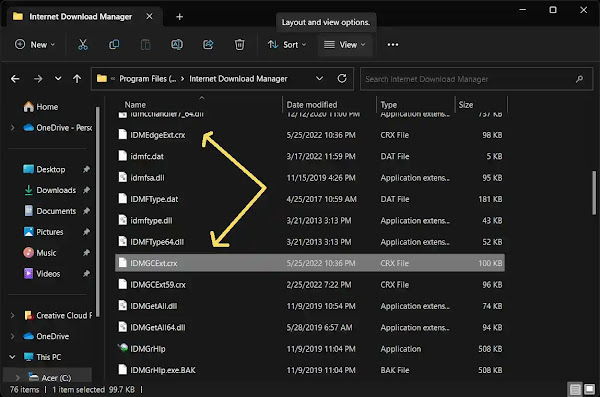
-
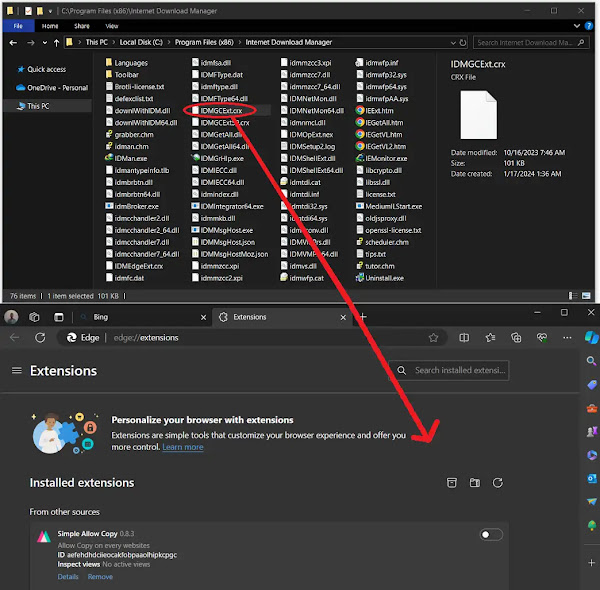
Drag and drop the IDMCC extension file onto the Edge extension page.
-
Microsoft Edge will prompt you to grant permission to install the extension. Click
“Add extension.”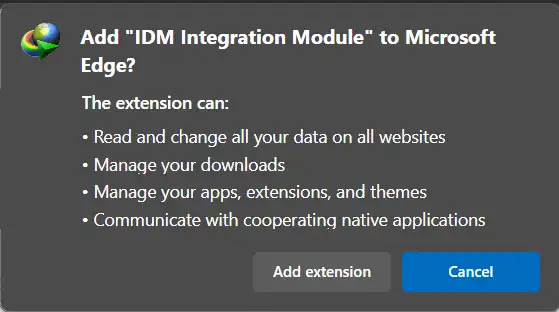
- Once installed, a new browser tab will open, confirming the successful
installation of the IDM extension for Edge. You can close this tab.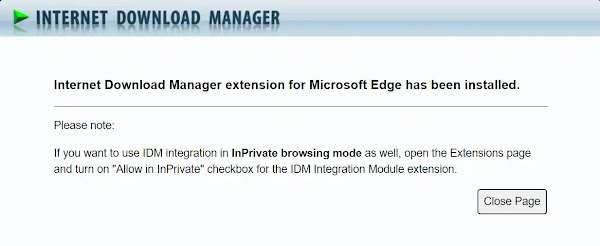
-
To customize settings, click the “Details” button under IDM extensions.
Enable “Allow in InPrivate” If you want to use IDM integration in Private browsing mode as well and “Allow access to file
URLs.”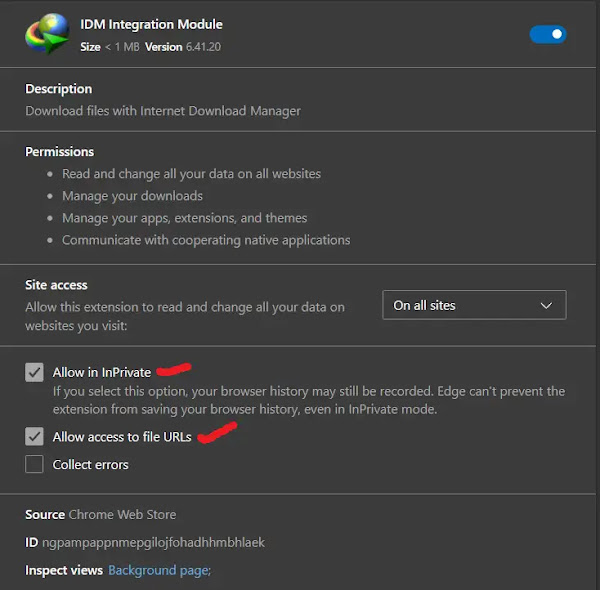
Congratulations! You have successfully integrated the Internet Download
Manager (IDM) extension into Microsoft Edge via IDM addon file [IDMGCExt.crx]
for Edge manually. You can now use IDM to manage your downloads directly from
your Edge browser.
You may like to read these posts:
How to Install IDM to Edge via Microsoft Edge Add-Ons
To integrate IDM with Edge using the IDM Add-on, you can follow these steps:
- Access the direct link to the “IDM Integration Module” on the Microsoft Edge Add-Ons: IDM Extension Edge Add-on URL
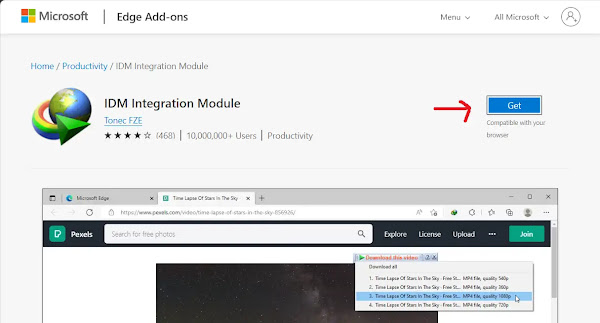
- Click on the “Get” button and confirm the installation by
clicking “Add extension”. - Once installed, a new browser tab will open, confirming the successful
installation of the IDM extension for Opera. You can close this tab.
By following these steps, you can easily integrate the Internet Download
Manager (IDM) with Edge using the Edge Add-on.
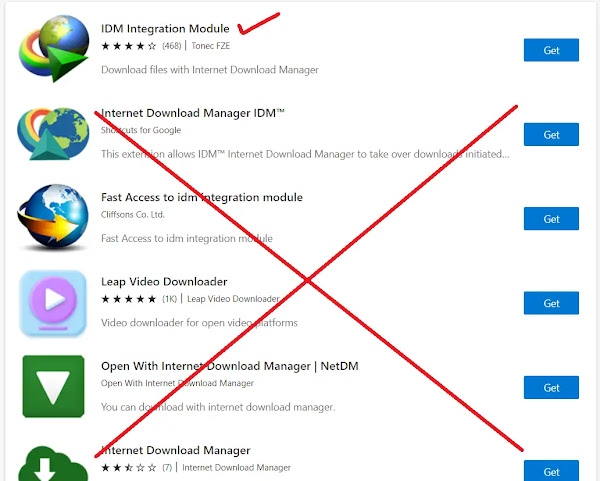
Avoid installing any fake IDM extensions from the Microsoft Edge Add-Ons, as
they may contain viruses. Ensure you only use the authentic IDM extension.
How to Fix:
- Error: Cannot launch IDM, either IDM application is not installed, or some of its files are corrupted
- IDM Integration Module This Extension may have been Corrupted
- This version of IDM does not support this type of downloading
- Permission Denied IDM Firewall Error
- Cannot transfer the download to IDM
- IDM HTTP/1.1 403 Forbidden
- This extension may soon no longer be supported IDM
FAQs
How to Fix IDM Extension not Working in Microsoft Edge?
If the IDM (Internet Download Manager) extension isn’t working in Microsoft Edge, first ensure that both IDM and Edge are updated to their latest versions. Then, try disabling and re-enabling the IDM extension in Edge’s extension settings. If the issue persists, you might need to reinstall the IDM extension manually in Microsoft Edge. Additionally, check if there are any conflicts with other extensions or antivirus software that might be causing the problem.