
Are you tired of slow downloads and messy interfaces? Ready to turbocharge
your downloading process? Discover the power of IDM integration module for
Brave Browser!
Brave Browser is gaining popularity for its speed, privacy, and security
features. With built-in ad-blocking and tracker protection, Brave ensures a
hassle-free browsing experience. But did you know you can take it up a notch
by adding IDM extension to Brave?
IDM, or Internet Download Manager, is renowned for its lightning-fast speeds
and efficient download management. Now, you can seamlessly integrate IDM with
Brave Browser to revolutionize the way you download files. With just a few
simple steps, you’ll be enjoying quicker downloads and better organization.
In this post, we’ll walk you through adding IDM to Brave Browser, making your
downloading process a breeze. Say goodbye to clunky interfaces and hello to
one-click downloads and streamlined management. Let’s dive into how to add IDM
in Brave and supercharge your downloads!
Top posts:
How to Add IDM Extension in Brave Browser

Adding IDM to Brave Browser can be done via two methods: installing the
extension using the CRX file or installing it directly from the Chrome Web
Store. Below, I’ll guide you through both methods:
Integrate IDM Extension to Brave using CRX File
Download the latest Internet Download Manager IDM Integration Module 6.42.3 IDMGCExt.crx [IDM CC] file to integrate IDM manually into Brave browser.
To add the Internet Download Manager (IDM) extension to Brave using a CRX
file, you can follow these steps:
- Launch Brave Browser on your Windows PC.
-
Click on the menu icon (three horizontal lines) in the top-right corner,
then select “Extensions” from the drop-down menu.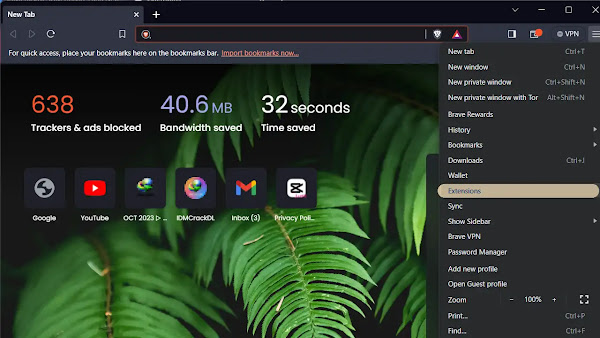
-
Open File Explorer on your Windows PC. And navigate to the directory where
you installed Internet Download Manager, usually in
C:Program Files (x86)Internet Download Manager. -
Look for the
IDMGCExt.crxfile in this directory.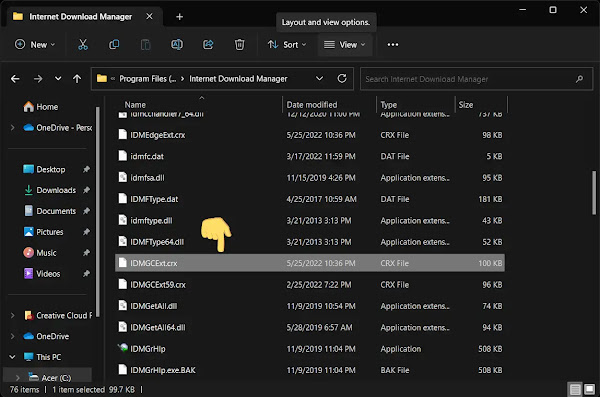
-
Simply drag and drop the IDMGCExt.crx file into the Brave Extension Tab.
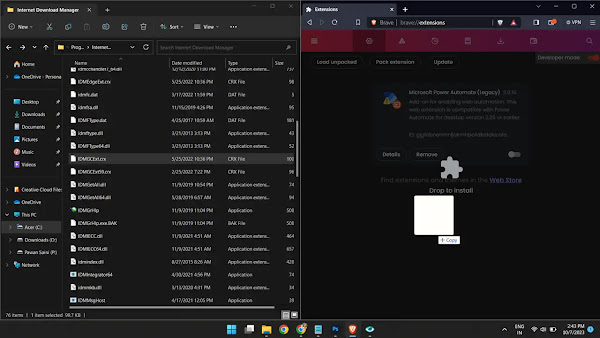
-
Once you drop the file into the Extension Tab, Brave will prompt you to
install the extension. Click “Add extension” to integrate the IDM module
into Brave Browser.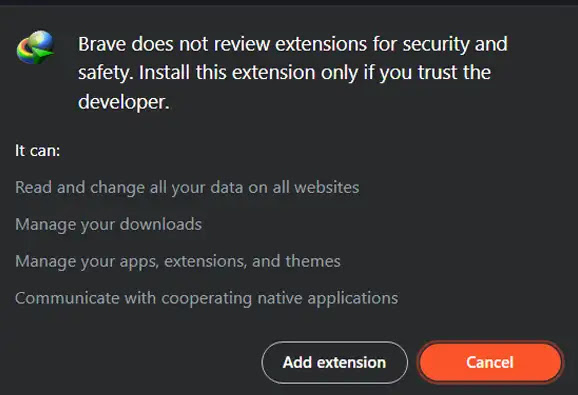
-
Customize IDM Extension settings by clicking on the “Details” button in the
Brave Extension Tab for the IDM Integration Module and check the boxes for
“Allow in Private” and “Allow access to file URLs”.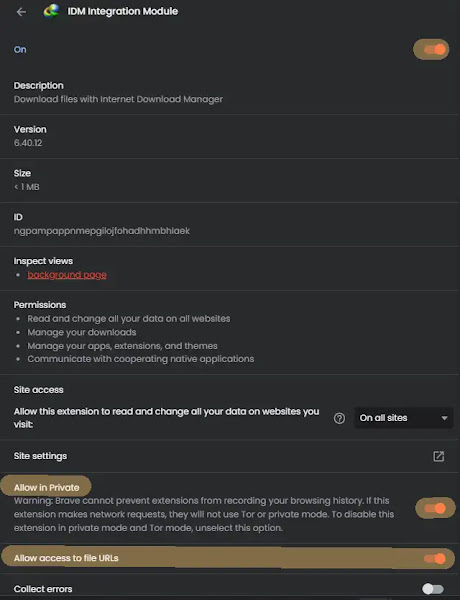
By following these steps, you can seamlessly integrate the IDM extension into
your Brave browser manually using the CRX file.
You may like to read these posts:
Add IDM to Brave using Web Store Link
To integrate the IDM extension into Brave browser using the Chrome Web Store
link, follow these steps:
Avoid installing any fake IDM extensions from the Chrome Web Store, as
they may contain viruses. Ensure you only use the authentic IDM extension.
- Open Brave and navigate to the IDM Integration Module page on the Chrome Web Store using this link: IDM Integration Module – Chrome Web Store.
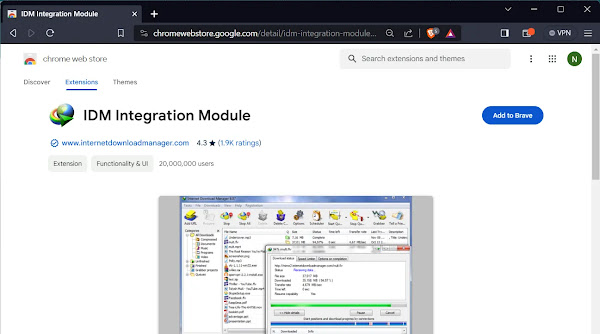
- Click on the “Add to Brave” button on the IDM extension page in the Chrome Web Store.
- Brave will prompt you to confirm the installation of the IDM extension. Click “Add Extension” to proceed.
- After installation, check if IDM is successfully integrated by locating its icon in the Extensions bar of your Brave browser.
By following these steps, you can seamlessly add the IDM extension to your
Brave browser using the Chrome Web Store link.
How to Get Rid of:
- Error: Cannot launch IDM, either IDM application is not installed, or some of its files are corrupted
- IDM Integration Module This Extension may have been Corrupted
- This version of IDM does not support this type of downloading
- Permission Denied IDM Firewall Error
- Cannot transfer the download to IDM
- IDM HTTP/1.1 403 Forbidden
- This extension may soon no longer be supported IDM