
Internet Download Manager (IDM) stands as one of the premier download managers
for Windows PC, offering an array of features including video downloads,
accelerated download speeds, bulk downloading, and more.
To unlock these capabilities, integrating the IDM extension into your
preferred browsers—Google Chrome, Opera, Firefox, Microsoft Edge, and Brave—is
essential. If you’re using a different browser, please specify in the
comments.
When you install IDM on your PC, and open the browser after it, it will prompt
you to add the IDM integration module. If you miss this prompt or accidentally
remove the IDM extension, here’s how you can re-integrate it into Chrome.
Avoid installing any fake IDM extensions from the Chrome Web Store, as
they may contain viruses. Ensure you only use the authentic IDM extension.
How to Add IDM Extension in Chrome
![How to add idm [internet download manager] extension in chrome](https://blogger.googleusercontent.com/img/b/R29vZ2xl/AVvXsEjZ0OgfUyyzLhwjLJotUXIz63cvIdYLxqnA8wPNO0R-xxScOdV0TyeYCRlsijChtrgP23W_KOEIgRyQ4EgMC_6RONFcNWlm6ptp4-YQdkt9rD0DZON54nZP6gRuxpUiIjXYeZlSaee5I_HgDL7dM7LyCvTLhw_4hQJYw9duHqUJ1etsQcm3ARFA7x4EDXQ/s1920/Add-idm-extension-to-chrome.webp)
There are primarily two methods to integrate IDM in Chrome. Let’s explore
both:
Adding IDM Extension using CRX File
This method involves utilizing the IDMGCExt.crx file located in the IDM
installation directory.
Or you can download the latest Internet Download Manager IDM Integration Module 6.42.18.3 IDMGCExt.crx [IDM CC] file to integrate IDM manually into Chrome.
Follow these steps:
-
Open the Chrome extension page by selecting Extensions > Extension from
the menu. - Enable developer mode.
-
Navigate to “C:Program Files (x86)Internet Download Manager” using File
Explorer and locate the IDMGCExt.crx file.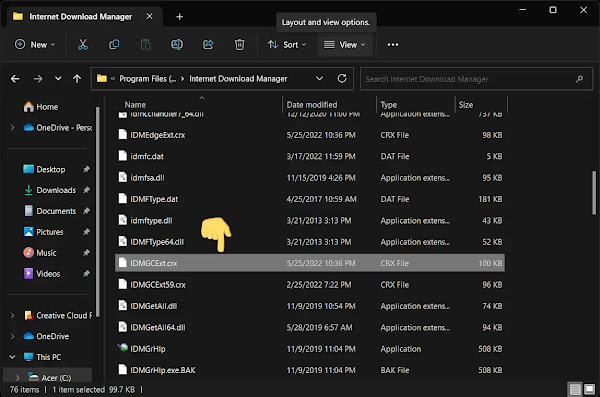
-
Drag and drop the IDMCC extension file onto the Chrome extension page.
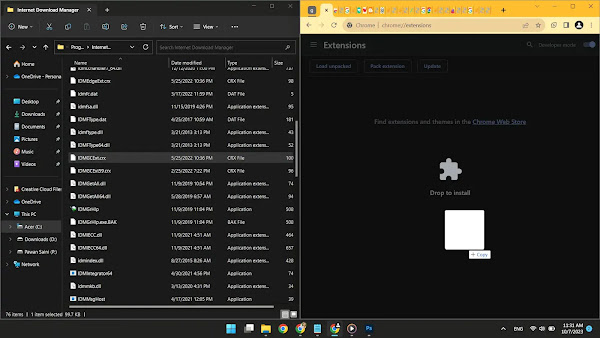
-
Chrome will prompt you to grant permission to install the extension. Click
“Add Extension.”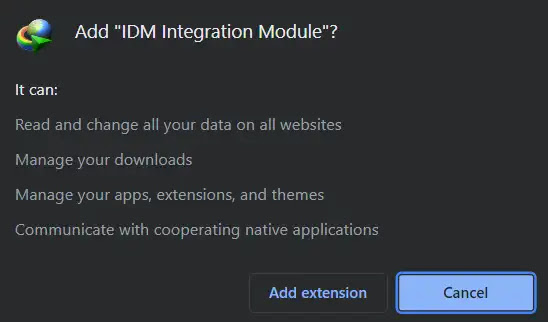
- Once installed, a new browser tab will open, confirming the successful installation of the IDM extension for Chrome. You can close this tab.
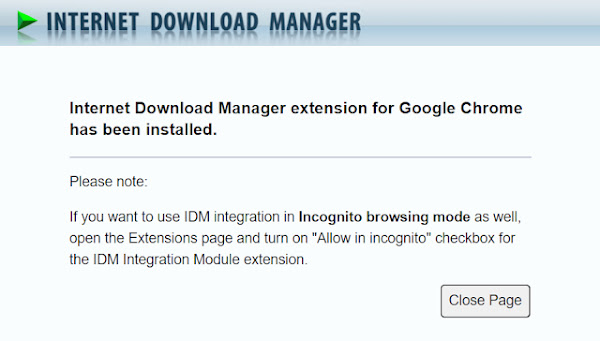
-
To customize settings, click the “Details” button under IDM extensions.
Enable “Allow in incognito” and “Allow access to file
URLs.”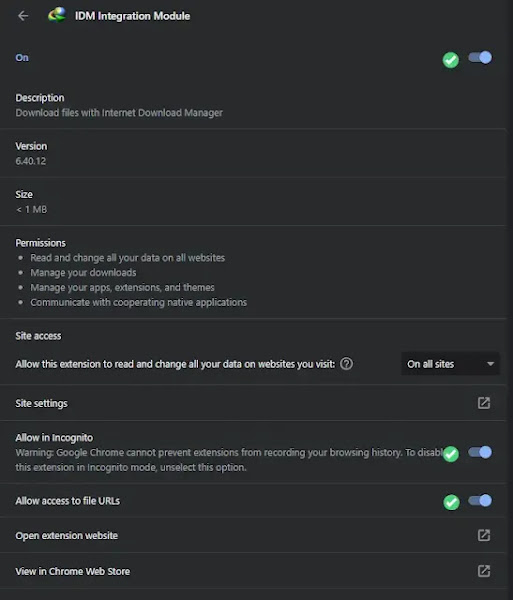
Now, you’re ready to test IDM’s extension in your Chrome browser. Try
downloading a file to see if the IDM download panel appears.
Video Guide: How to Install IDM in Chrome
You may like to read these posts:
Installing IDM Extension via Chrome Web Store
The genuine IDM integration module is not directly accessible through the
Chrome Web Store to prevent potential security risks. Instead, use the
following URL to access the real IDM extension:

- Real IDM Extension: chrome.google.com/webstore/detail/idm-integration-module/ngpampappnmepgilojfohadhhmbhlaek
-
Click “Add to Chrome” on the webpage and allow the extension. After
installation, customize the extension settings from the Chrome extensions
page by clicking the “Details” button under the IDM integration module. -
Ensure to enable “Allow access to all URLs” and “Allow the extension in
incognito mode” if you use private browsing.
That concludes the process of installing the IDM extension in Google Chrome.
Should you have any questions about IDM integration, feel free to ask in the
comments. I’m here to assist you.
How to Fix:
- Error: Cannot launch IDM, either IDM application is not installed, or some of its files are corrupted
- IDM Integration Module This Extension may have been Corrupted
- This version of IDM does not support this type of downloading
- Permission Denied IDM Firewall Error
- Cannot transfer the download to IDM
- IDM HTTP/1.1 403 Forbidden
- This extension may soon no longer be supported IDM
FAQs
How to Fix IDM Extension Not Showing in Chrome?
To fix the issue of IDM extension not showing in Chrome, you can follow these
steps based on the provided information:
-
Update IDM: Ensure that your Internet Download Manager (IDM) is updated to
the latest version by using the “IDM Help→Check for updates…” menu item. -
Install IDM Integration Module: If you don’t see the “IDM Integration
Module” extension in the list of Chrome extensions, you can install it
directly from the Chrome Web Store using the provided direct link. -
Configure IDM Extension: After adding the IDM extension to Chrome, configure
it correctly by:
-
Clicking on the Extensions 🧩 in Chrome and then choosing “Manage
Extensions”. - Click on “Details” for the IDM extension.
-
Ensure that the “IDM Integration Module” extension is enabled and allowed
to read data on all sites. - If you use incognito mode, enable the “Allow in incognito” checkbox.
By following these steps, you should be able to resolve the issue of IDM
extension not showing in Chrome.
How to Find IDM Extension in Chrome Web Store?
To find the IDM extension in the Chrome Web Store, you won’t be able to locate
it through a regular search because it is intentionally hidden due to its
automatic installation process. However, you can directly install the genuine
IDM Integration Module extension from the Chrome Web Store using the following
steps:
-
Visit the official IDM Integration Module page on the Chrome Web Store by
clicking on this link: chrome.google.com/webstore/detail/idm-integration-module/ngpampappnmepgilojfohadhhmbhlaek -
Click on the “Add to Chrome” button next to the IDM Integration Module
extension. - Confirm the installation when prompted.
By following these steps, you can successfully add the IDM extension to your
Chrome browser from the official source, ensuring a secure and genuine
installation.
How to Add IDM Extension in Chrome after Remove?
To add the IDM extension in Chrome after removing it, you can follow these
steps:
- Open Google Chrome and click on the three dots in the top right corner.
- Navigate to “More tools” and then select “Extensions.”
-
Open File Explorer and go to the drive where Internet Download Manager (IDM)
is installed. -
Locate the IDM folder in “Program Files (x86)” and find the file named
“IDMGCExt.crx.” - Drag and drop the “IDMGCExt.crx” file onto the Chrome Extensions page.
- Confirm the installation when prompted by clicking on “Add extension.”
By following these steps, you can successfully add the IDM extension back to
Google Chrome.