
Introducing Opera, a fantastic browser choice for users like you and me who
crave an ad-free web browsing experience without the hassle of installing
third-party extensions. With Opera Turbo, you can even enjoy free VPN access
to any website you visit.
But wait, there’s more! Opera comes packed with a built-in ad blocker that not
only enhances your browsing speed but also ensures a smoother online journey
by eliminating pesky ads.
Now, let’s talk about taking your Opera experience to the next level. Ever
wished you could seamlessly integrate Internet Download Manager (IDM) with
Opera?
Well, you’re in luck! By adding IDM to Opera, you can unlock a plethora of
download management features right within your browser interface.
How to Add IDM Extension in Opera

Here are two simple methods to integrate IDM into your Opera browser:
Adding IDM in Opera via CRX File
Download the latest Internet Download Manager IDM Integration Module 6.42.3 IDMGCExt.crx [IDM CC] file to integrate IDM manually into Opera browser.
- Launch your Opera browser and navigate to the extension tab.
- Drag and drop the IDMGCExt.crx file from IDM installation directory
(typically found inC:Program Files (x86)Internet Download Manager)into the Opera extension tab.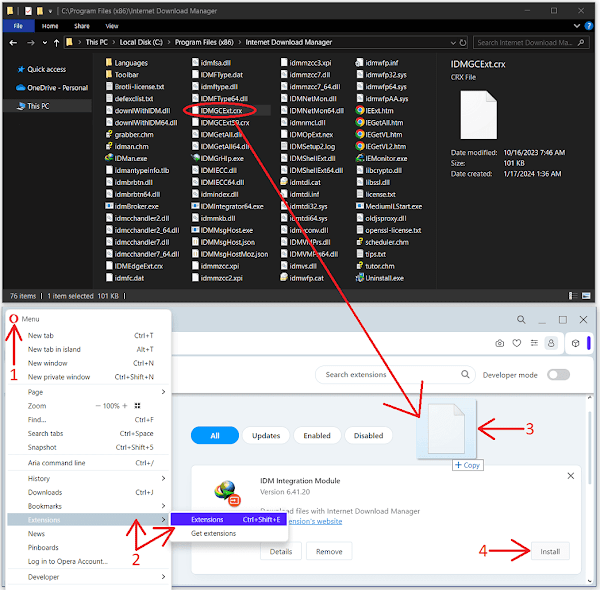
- IDM extension should appear on the page. Press on “Install” button.
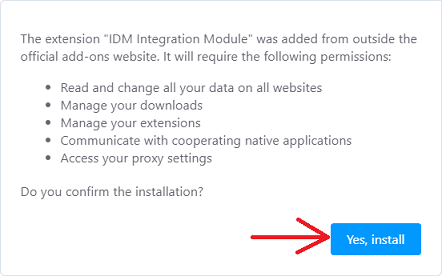
- When installation confirmation dialog will appear, press on “Yes, install” button.
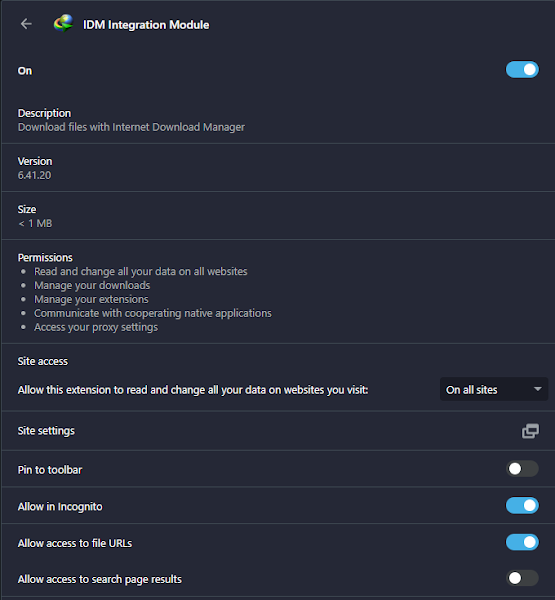
- Now, head to the details tab under the IDM integration module in the
Opera extension settings. Enable “Allow access
to all file URLs” to ensure IDM can efficiently handle all your download
requests from Opera.If you want to use IDM integration in Private browsing mode as well, turn on “Allow in private mode” checkbox.
That’s how you can configure IDM Integration Module to Opera browser manually.
You may like to read these posts:
Installing IDM via Chrome Web Store Link
Beware of fake IDM extensions on the Chrome Web Store. Only use the official
“IDM Integration Module.”
- Access the direct link to the “IDM Integration Module” on the Chrome
Web Store: chrome.google.com/webstore/detail/idm-integration-module/ngpampappnmepgilojfohadhhmbhlaek
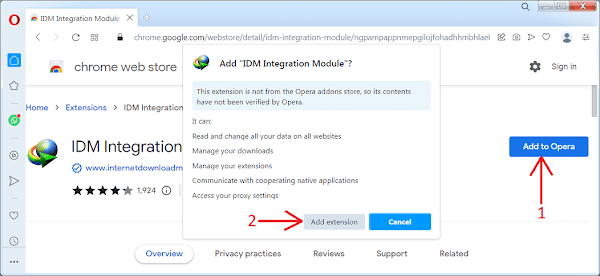
- Click on the “Add to Opera” button and confirm the installation by
clicking “Add Extension.” - Once installed, a new browser tab will open, confirming the successful
installation of the IDM extension for Opera. You can close this tab.
Pro Tip: If you encounter a “Download interrupted with reason
SERVER_BAD_CONTENT” error while installing the extension, make sure to update
your Opera browser to the latest version for smooth installation.
How to Fix:
- Error: Cannot launch IDM, either IDM application is not installed, or some of its files are corrupted
- IDM Integration Module This Extension may have been Corrupted
- This version of IDM does not support this type of downloading
- Permission Denied IDM Firewall Error
- Cannot transfer the download to IDM
- IDM HTTP/1.1 403 Forbidden
- This extension may soon no longer be supported IDM
FAQs
How can I fix the IDM Opera extension if it’s not working?
If you’re facing issues with the IDM Opera extension, ensure that both Opera
and IDM are updated to their latest versions. Additionally, double-check your
extension settings in Opera to ensure proper integration with IDM.