
Picture this: You’re in the zone, gaming or exploring the web with Opera GX,
the browser made for gamers. Suddenly, you stumble upon something you want to
download – a game, a video, or a file. But hey, downloading can be a drag,
right?
Not anymore. Meet IDM (Internet Download Manager) the best Windows download
program, your new best friend for turbocharging downloads.
In this quick guide, we’ll show you how to seamlessly integrate IDM
integration module to Opera GX.
Say goodbye to sluggish downloads and hello to lightning-fast speeds and easy
management. Let’s dive in and supercharge your browsing experience!
Top posts:
How to Add IDM to Opera GX

Here are two simple methods to integrate IDM Integration Module into your
Opera GX Gaming browser, one is using IDMCC, and the other using Web Store
Link. Let’s have a look at both of them. You can go with any of them both work
perfectly.
Adding IDM Extension in Opera via CRX File
Download the latest Internet Download Manager IDM Integration Module 6.42.18.3 IDMGCExt.crx [IDM CC] file to integrate IDM manually into Opera GX browser.
- Launch your Opera GX browser and navigate to the extension panel.
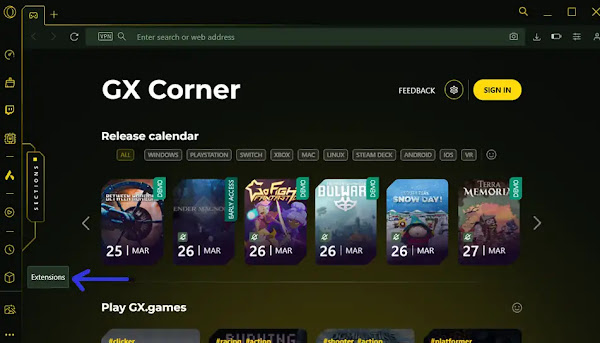
- Drag and drop the IDMGCExt.crx file from IDM installation directory (typically found in
C:Program Files (x86)Internet Download Manager) into the Opera GX extension tab.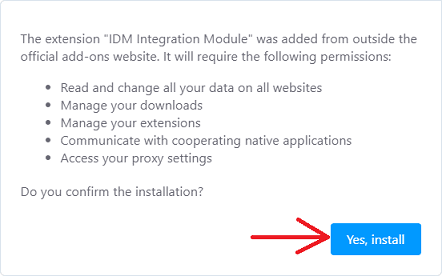
- Now, head to the details tab under the IDM integration module in the
Opera GX extension settings. Enable “Allow access
to all file URLs” to ensure IDM can efficiently handle all your download requests from Opera.If you want to use IDM integration in Private browsing mode as well, turn on “Allow in private mode” checkbox.
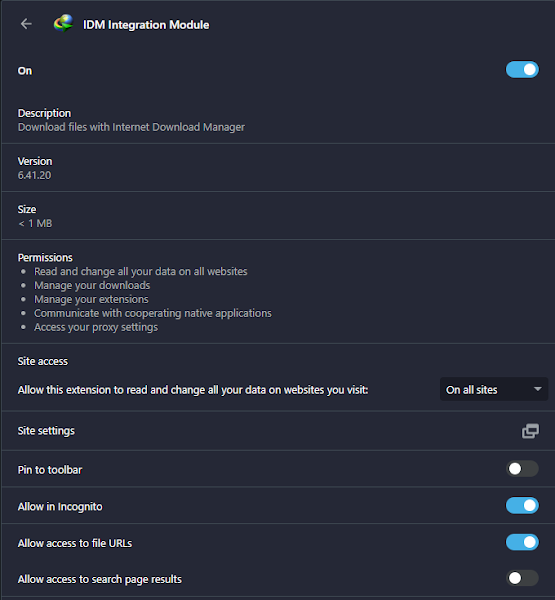
That’s how you can configure IDM Integration Module to Opera GX browser
manually.
You may like to read these posts:
Installing IDM in Opera GX via Chrome Web Store Link
Beware of fake IDM extensions on the Chrome Web Store. Only use the official
“IDM Integration Module.”
- Access the direct link to the “IDM Integration Module” of Chrome
Web Store: chrome.google.com/webstore/detail/idm-integration-module/ngpampappnmepgilojfohadhhmbhlaek
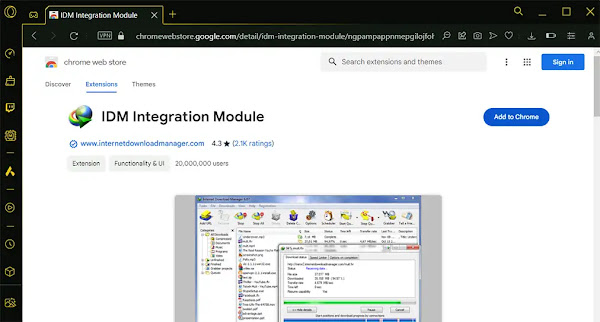
- Click on the “Add to Chrome/ Opera GX” button and confirm the installation by
clicking “Add Extension.”
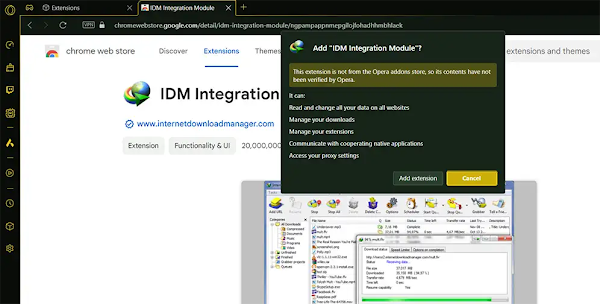
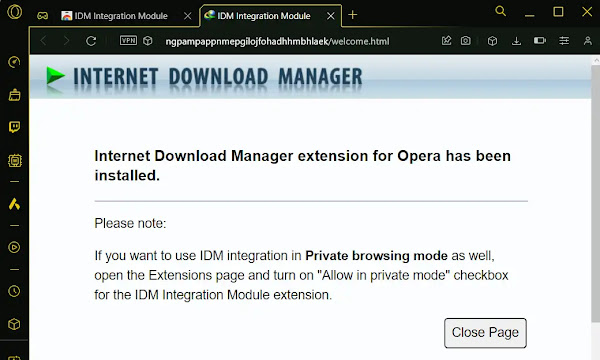
- Once installed, a new browser tab will open, confirming the successful
installation of the IDM extension for Opera GX. You can close this tab.
How to Fix:
- Error: Cannot launch IDM, either IDM application is not installed, or some of its files are corrupted
- IDM Integration Module This Extension may have been Corrupted
- This version of IDM does not support this type of downloading
- Permission Denied IDM Firewall Error
- Cannot transfer the download to IDM
- IDM HTTP/1.1 403 Forbidden
- This extension may soon no longer be supported IDM
FAQs
How can I fix the IDM extension not working in Opera GX?
If you’re facing issues with the Internet Download Manager extension in Opera GX, ensure that both Opera GX and IDM are updated to their latest versions. Additionally, double-check your extension settings in Opera GX Gaming Browser to ensure proper integration with IDM.